 VOLUMA
How to write to an NTFS drive on a Mac
You plug in a Windows drive, open a folder, and Paste is greyed out. macOS can read NTFS but it mounts the volume read-only. This guide covers your real options and the free one that needs no reformatting.
Why macOS will not write to NTFS
NTFS is Microsoft's filesystem. Apple ships the ability to read it, and does not offer a supported way to write to it. That is why a Windows drive opens fine in Finder but refuses new files, renames and deletes. The drive is not damaged and nothing is wrong with your Mac.
Your options, honestly
| Option | Cost | The catch |
|---|---|---|
| Reformat the drive to exFAT | Free | Erases the drive. exFAT works on Mac and Windows, but not for a Windows system disk. |
| A commercial NTFS driver (Paragon, Tuxera) | Paid | The drive shows up read-write in Finder. You pay, and you install a driver. |
| macFUSE with ntfs-3g | Free | Needs a system extension that you must approve, and it can break after macOS updates. |
| VOLUMA | Free | You work inside its window, not in Finder, and it asks for your password once per session. |
Write to NTFS with VOLUMA
Install it first: download the zip, or run pip install nolo-voluma and then voluma in a terminal.
- Shut Windows down fully. Fast Startup leaves an NTFS drive hibernated, and VOLUMA refuses to write to it. Choose Shut down, not Restart or Sleep, or turn Fast Startup off.
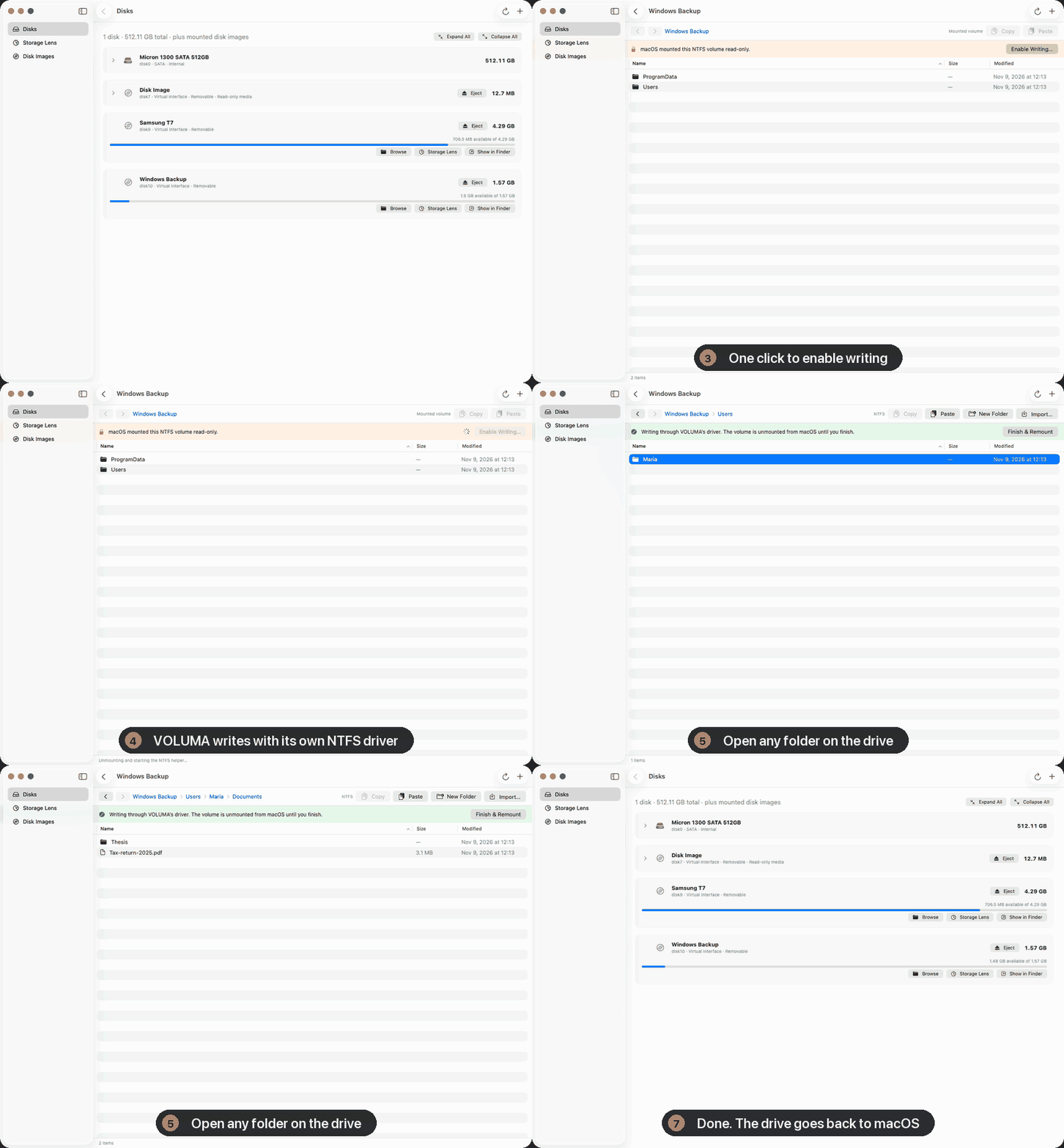
- Open the drive. In VOLUMA's Disks view, find the volume and press Browse. A banner says macOS mounted it read-only.
- Press Enable Writing. VOLUMA unmounts the volume from macOS and asks for your administrator password. It starts a small helper that can see only that one drive.
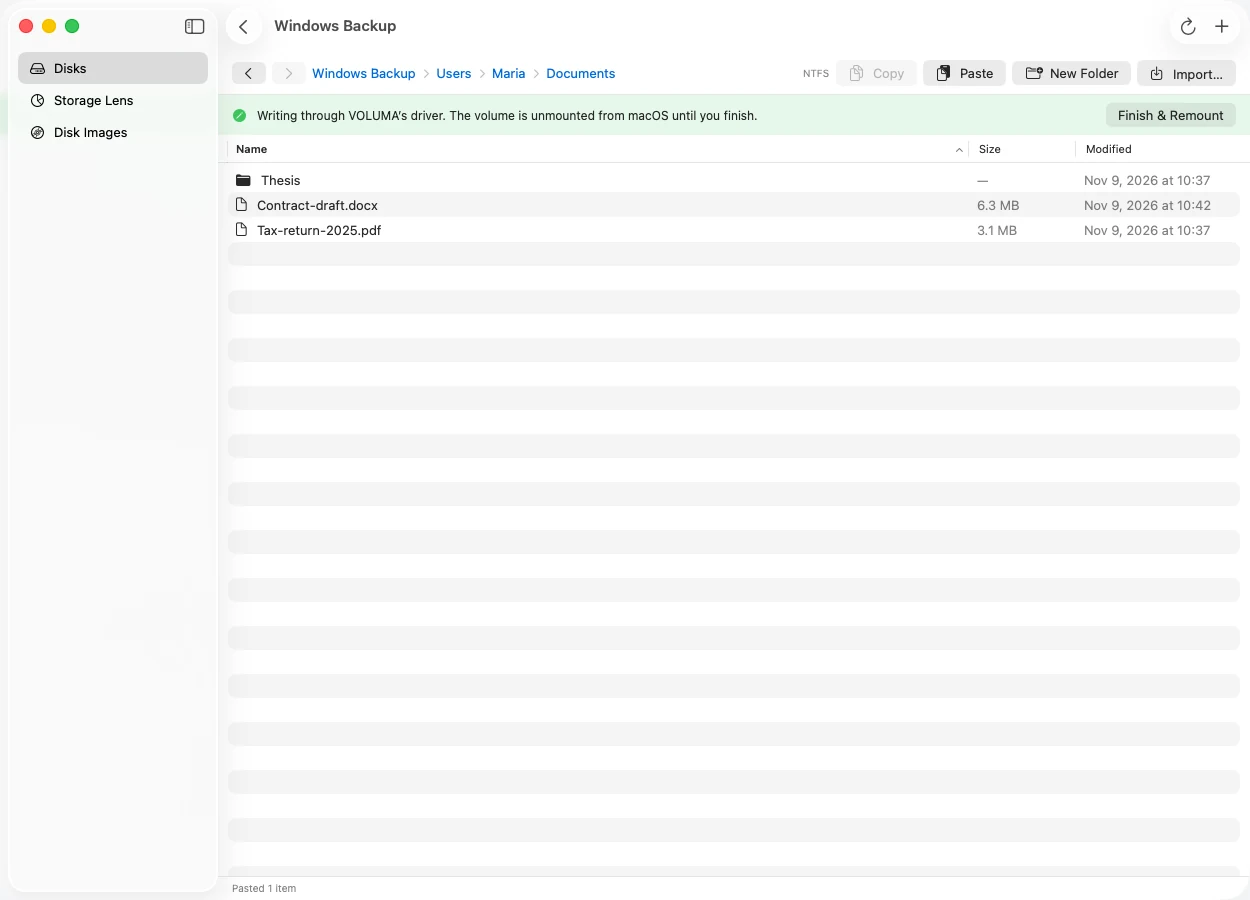
- Paste. Copy files from another drive or from Finder, then press Paste. New folders, renames and deletes work too. If a name already exists, the copy is called "name copy" and nothing is overwritten.
- Press Finish and Remount. The drive goes back to macOS. Leaving the window ends the session the same way.
How the write stays safe
An NTFS volume is a database of files, and a half-finished write can corrupt it. VOLUMA writes in an order that keeps the volume readable at every step: file data first, then the space bitmap, then the file record, and the folder entry last. If a copy fails partway, the space it used is released. While a session is open the volume's dirty flag is raised, and if an I/O error interrupts a write the flag stays raised so Windows will check the drive next time.
The driver is tested against volumes created and inspected by the ntfs-3g project's own tools (ntfs-3g on GitHub): its consistency checker must pass after every kind of change, and its reader must be able to open every file VOLUMA wrote. The suite also runs writes on 150 deliberately corrupted volumes to make sure none of them crash it.
When VOLUMA says no
These refusals protect your data. VOLUMA still lets you read the drive in every case.
- The volume is marked dirty. Windows did not shut down cleanly. Plug the drive into a Windows PC and run chkdsk on it.
- Windows is hibernated. A hiberfil.sys with a hibernation marker is on the drive. Boot Windows and shut it down completely.
- The log is not clean. The NTFS journal still holds unfinished work. Let Windows replay it by mounting the drive there.
- Could not unmount. Something still uses the volume. Close Finder windows and apps that opened files on it, then try again.
How fast is it?
On disk images with a warm cache, VOLUMA writes a 256 MB file to NTFS at about 2,100 MB/s, against about 200 MB/s for ntfs-3g's own copy tool. A real drive is limited by the drive, usually to well under that, so treat these as a measure of driver overhead. The method and the raw numbers are in the benchmarks.
What is and is not supported
You can create, overwrite, delete and rename files and folders, including large folders with thousands of entries. VOLUMA does not write compressed or encrypted NTFS files, files with several hard links, or alternate data streams, and it does not make the drive appear in Finder.
Back up first. The NTFS driver is checked against ntfs-3g's consistency tools and against deliberately corrupted disks. It has not been checked with Windows chkdsk. For a drive that holds the only copy of something, keep another copy.
After you finish
Press Finish and Remount before unplugging. VOLUMA returns the volume to macOS, which then lets you eject it as usual. If the drive is going back to a Windows machine, a quick chkdsk there is cheap insurance.
Want the numbers? See the benchmarks. Looking to put a Windows installer on a USB stick instead? That is a different job, and Ndaga Fijo does it.