 VOLUMA
How to read an ext4 Linux drive on a Mac
Linux drives use ext4, and macOS cannot open them. Connect one and macOS offers to initialise it, which would erase everything. Do not click that. Here is how to read the files instead.
Why macOS cannot read ext4
ext4 is the default filesystem on most Linux systems, and macOS has no driver for it. A drive formatted ext4 shows up in Disk Utility as unreadable, and macOS suggests initialising it, which would erase it. Nothing is wrong with the drive. It just speaks a language macOS does not.
Your options
| Option | Cost | The catch |
|---|---|---|
| A commercial Linux file system driver | Paid | Mounts the drive in Finder, often read-write. |
| macFUSE with an ext4 plugin | Free | Needs a system extension that you must approve, and macOS updates can break it. |
| A Linux virtual machine | Free | Needs USB passthrough and setup time. |
| VOLUMA | Free | Read-only, inside its own window. You copy files out. |
Read an ext4 drive with VOLUMA
Install it first: download the zip, or run pip install nolo-voluma and then voluma in a terminal.
- Click Ignore if macOS asks to initialise the disk.
- Find the partition. In VOLUMA's Disks view it appears as an unmounted partition, often labelled Linux Filesystem. Press Browse.
- Enter your administrator password. Reading a raw partition needs it. VOLUMA starts a small helper that can see only that partition.
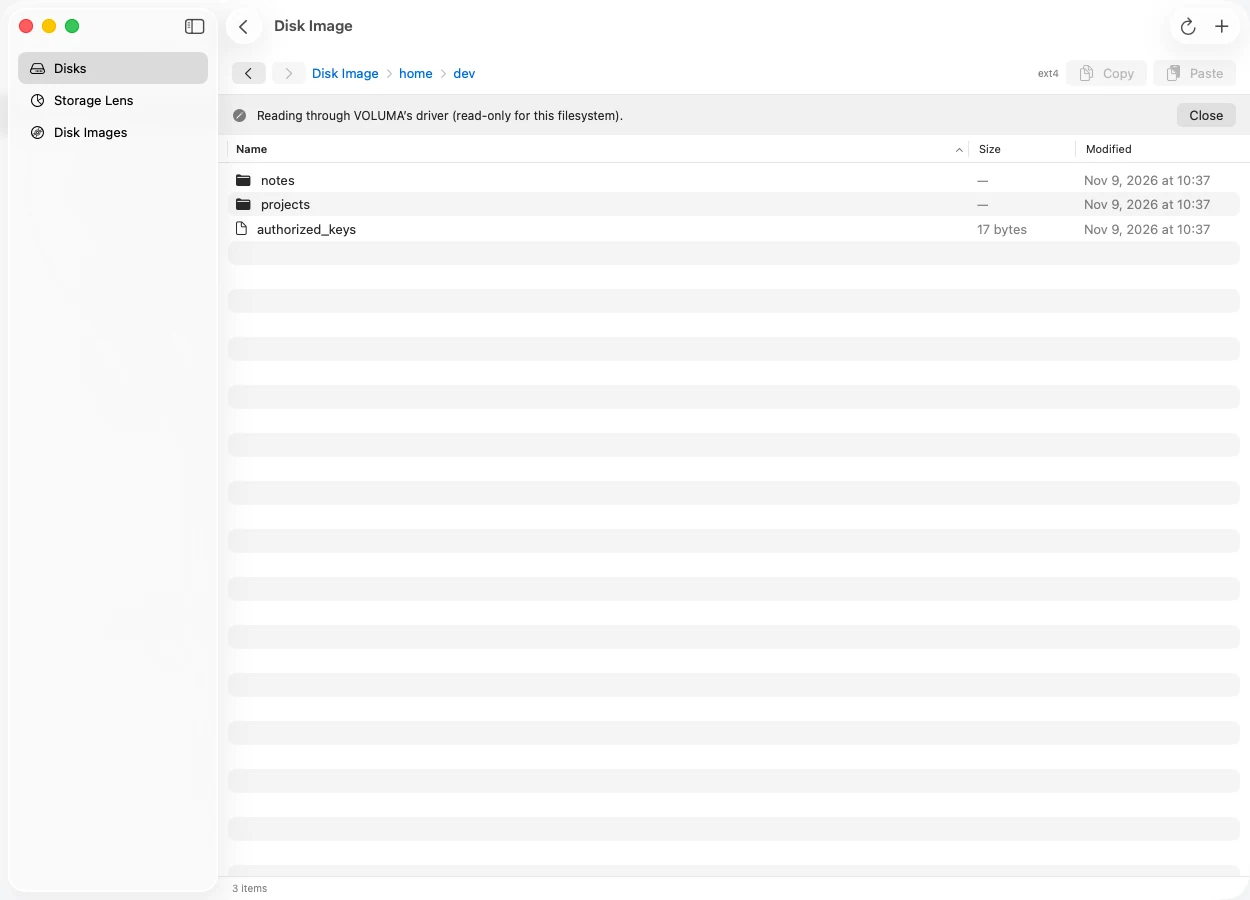
- Browse and copy out. Open folders like in Finder, select files, press Copy, then paste them into a folder on a Mac volume or into Finder.
- Press Close. The helper stops. macOS never mounted the drive, so there is nothing to remount.
You can also open a disk image of an ext4 volume with Open Disk Image, which needs no password.
Copying files out safely
Copy from the Linux drive and paste into any folder on a Mac volume, or into Finder. Files arrive owned by you. Linux ownership and permission bits are not carried across, and a symbolic link arrives as a small file that holds the link's target path, because macOS has no use for a link into another machine's filesystem. VOLUMA stages each file in a temporary folder while it copies, so keep free space for one extra copy of your largest file.
If something does not work
- No Browse button. The button appears only for partitions macOS has not mounted. If macOS mounted the drive, browse it from the Disks view like any other volume.
- "No driver yet". The partition holds a filesystem VOLUMA cannot read, such as Btrfs, XFS or an encrypted volume.
- The password prompt was cancelled. Reading a raw partition needs administrator access. Press Browse again and approve it.
- "Needs journal recovery". Linux was not shut down cleanly. Boot it and shut down properly, then try again.
What works and what does not
- Works: ext2, ext3 and ext4, including extents, 64-bit sizes, large folders, sparse files and symbolic links.
- Refused: a volume that needs its journal replayed, which means Linux did not shut down cleanly. Boot Linux and shut it down properly, then try again.
- Not supported yet: encrypted volumes (LUKS), Btrfs and XFS, and any kind of writing to ext4.
It never writes. The ext4 driver opens the drive read-only, so browsing and copying cannot change anything on it.
The reader is checked against ext2, ext3 and ext4 images built by the e2fsprogs project (e2fsprogs), whose consistency checker must call each image clean, and the suite runs the reader over damaged images to make sure it never crashes.
Need to write to a Windows drive instead? See how to write to NTFS on a Mac.